A new look for your school's emails
20.10.2026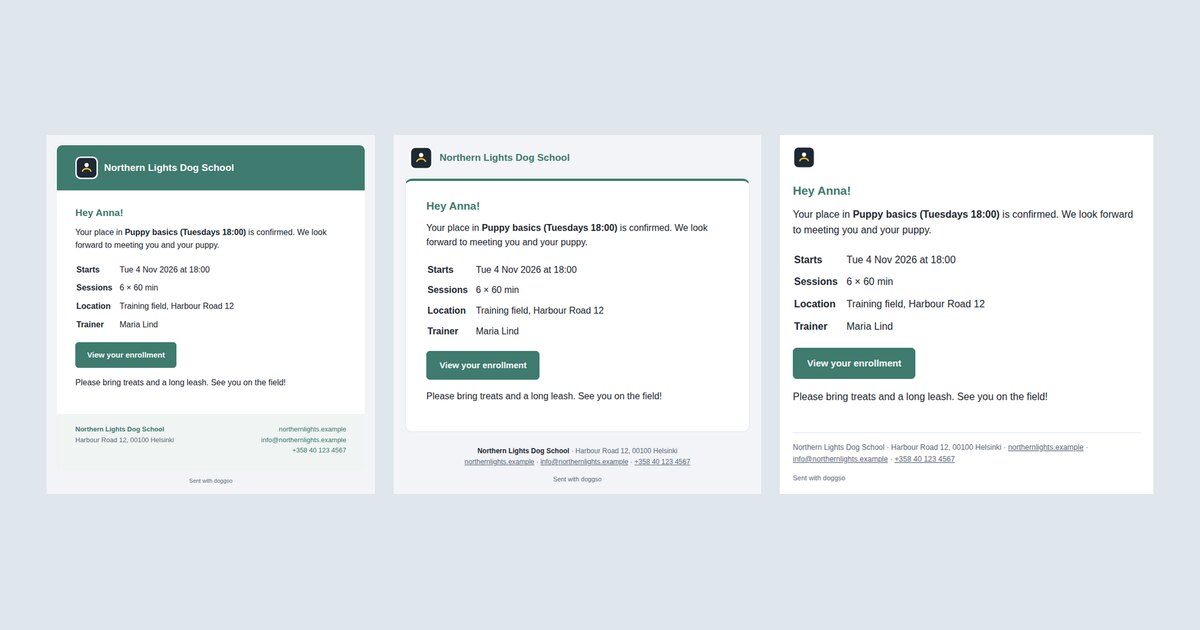
Every email your school sends – enrollment and booking confirmations, reminders, messages from the Messages section – is shown inside the same frame. That frame was very plain until now. Starting today it shows your logo, your school colour and your contact details, works well on phones, and looks the same in Gmail, Outlook and Apple Mail.
You can choose between three new layouts:
- Banner (the default): a header band in your school colour with your logo and name, the message on white, and a footer with your address and contact details.
- Card: your logo and name above a white card on a light grey background, with a thin line in your school colour.
- Letter: no frame at all – a small logo, the message and a one-line footer. It reads like a personal email.
If you prefer the previous look, choose Classic: nothing changes for you.
What’s new in every layout:
- Your logo in the header (or your email header image, if you have set one).
- A complete footer: school name, address, website, email and phone.
- The first sentence of the message shown in the inbox preview, next to the subject.
- Readable colours with every theme: text on your school colour switches between white and dark automatically.
Your emails already use the Banner layout; you don’t need to do anything. To pick another one, go to Settings → Appearance → Email layout. The Preview links under the setting show a sample email in each layout with your own colours, logo and footer. See all four layouts in the instructions
Also new for emails:
- Emails designed elsewhere: in the message form you can switch the editor to HTML, paste an email designed in another tool, and send it as is – without the school frame.
- Open and click tracking on every email form, not only on the mailing list.
- Email addresses that are not users yet can be added to a message (we switch this on per school – just ask).
Read more about sending and tracking emails
As always, if you have any questions, don’t hesitate to get in touch.